Skills
Create, manage and share skills with the people in your organisation.
Written By Kristė Vagnerytė
Last updated 20 days ago
Skills are reusable instructions that teach Cowork how to do a task the way your organisation does it, for example comparing insurance policies or turning a client email into a CRM record. You manage them in the Admin (Cowork) panel under Cowork settings, on the Skills tab. Cowork settings also has the tabs Dify & MCP, External connectors and Configuration, and a How it works button with a short in-panel explanation.
The skills list
The Managed skills page lists every skill. Skills are compiled into each user's Cowork plugin, and only skills that are enabled and that the user has access to are shipped to them. Use the search box and the filter to find a skill.
For each skill the table shows:
Skill – the name, a short description and the directory name. A Private badge marks private skills (see below).
Status – a switch to enable or disable the skill.
Access – who receives it: All users, a number of assignments (for example 1 assignment), or Nobody.
Version and Updated – the current version (for example v3) and when it was last changed.
At the end of each row, the sliders icon opens the skill's distribution settings and the three dots open more actions.
The page has two views: All skills and Database skills, which shows skills that work with a connected database. In the Database skills view you can also filter by database.

Creating a skill
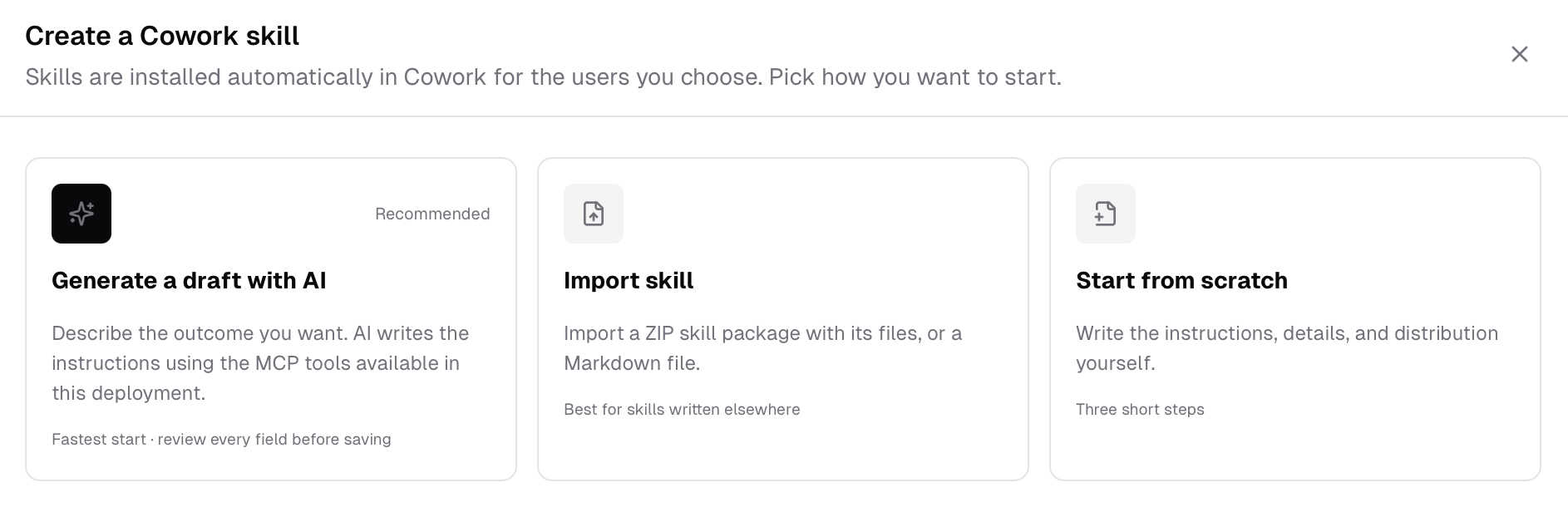
Click New skill and choose how to start:
Generate a draft with AI (recommended) – describe what the skill should do in a sentence or two, including the result you want, the workflow and any constraints. AI writes the instructions using the names and descriptions of the MCP tools available in your deployment. You can attach up to 5 example files or templates (up to 50 MB in total), and AI inspects them and refers to them in the instructions. You can also tick Use specific knowledge bases to add selected knowledge bases as retrieval recommendations. You review every field before saving.
Import a skill – import a ZIP skill package with its files, or a Markdown file. Best for skills that were written elsewhere.
Start from scratch – write the instructions, details and distribution yourself, in three short steps.
The three steps of a skill
Every skill is edited in the same three steps, listed on the left. A tick marks a step that is complete.
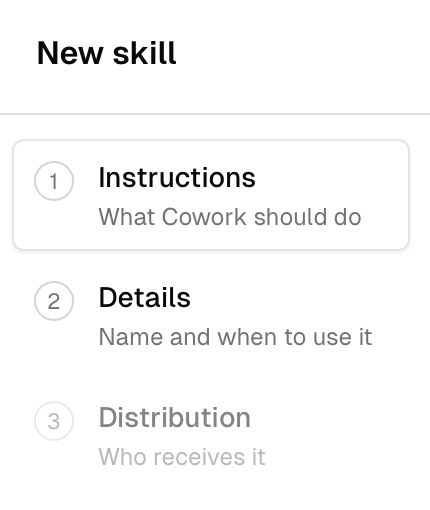
1. Instructions
This is what Cowork should do. Describe the task in the Markdown editor. Type / to refer to a knowledge base, a database, another skill or a file, and click a reference to replace or remove it. Add source does the same from a button.
Data source – choose a database if the skill should work with one, or leave it on None. Manage databases opens the databases page.
Edit with AI – ask AI to change the instructions for you.
Recommend knowledge bases – pick knowledge bases here without changing the instructions, or mention one in the text with /.
Skill files – upload files the skill needs, such as a script or a template (up to 200 files, 50 MB in total), and then refer to them in the instructions with /. Each file shows its path, its size and how many times it is referenced. The eye icon previews it and the bin icon removes it.
2. Details
The name is what users see in Cowork. The description and the When to use text help the model choose this skill instead of answering with general assistance, so write them clearly and mention the phrases people are likely to use. Generate with AI can write them for you. The Directory is the skill's folder name, created from the name.
3. Distribution
Distribution decides whose Cowork plugin includes the skill:
All users – every authenticated Cowork user.
Specific users and groups – pick people and groups from a searchable list. A person gets the skill when they or one of their groups is selected.
A switch at the bottom turns the skill on or off. A disabled skill is not shipped to anyone.
Private skills
Turn on Private when the instructions and files should not be handed to users. They stay on the server and run through a private subagent. Keep in mind:
The name and the discovery text stay visible to Cowork.
Content that was distributed before you turned Private on may still be in users' existing copies.
External or write-capable MCP tools that the skill refers to run without another Cowork confirmation, so approve them only if they are safe to run on their own.
Saving, downloading and deleting
Click Save changes to save. A skill has different versions: the version number (for example v1) is shown at the top of the window, and the clock icon next to it lets you see the skill's versions. Download skill (.zip) exports the skill with its files, which you can import into another environment. Delete skill removes it. Cancel closes the window without saving.
Who can create skills
Managers and admins can create and manage organisation-wide skills. In addition, every user can create their own personal skills, which stay with that user.
What to read next
Was this helpful?
Still need help? Ask the team